

What is an MCP Server?
MCP (Model Context Protocol) is an open standard for connecting AI agents to external tools and data sources. If a capability you need isn’t in Architect’s built-in integrations — a niche SaaS product, an internal API exposed over MCP, or a public MCP server like DeepWiki — you can connect it as an MCP server and let your agents call its actions.MCP servers are tied to your Lyzr account, not a single app. Once you connect a server, it’s available to every app you build under the same account — connect it once, reuse it everywhere. They’re authenticated under your account, so your agents can use them without any extra keys.
Method 1 — Connect in Lyzr Studio first, then just ask (recommended)
If you already know which MCP server you need, connect it in Lyzr Studio before you start building. Architect automatically sees all your connected MCP servers, so you just reference it in your prompt.1
Open Lyzr Studio from Architect
In the Architect sidebar, click Agent Studio to open Lyzr Studio.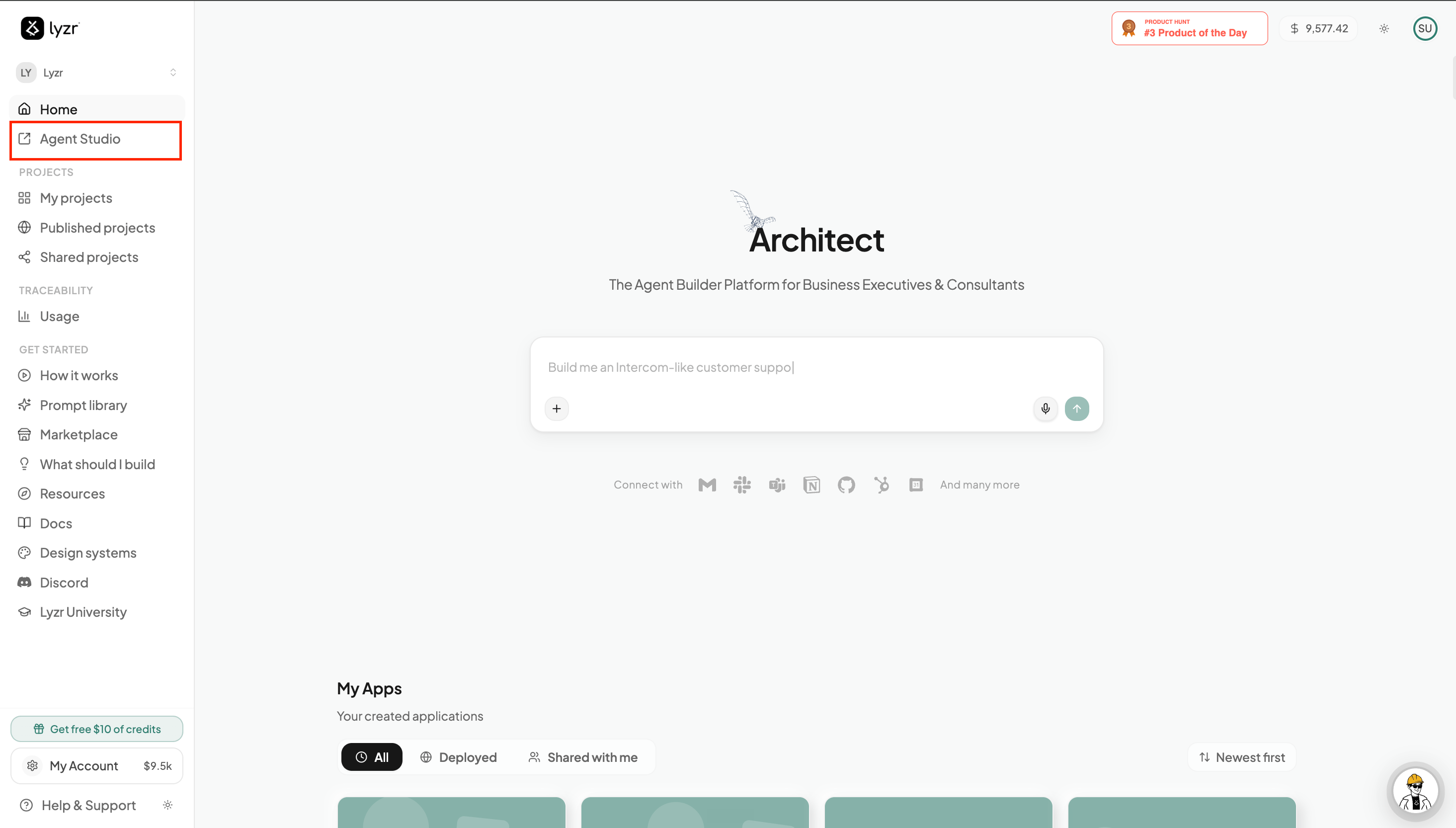
2
Go to Connections → Tools
In Studio’s left sidebar, open Connections and choose Tools.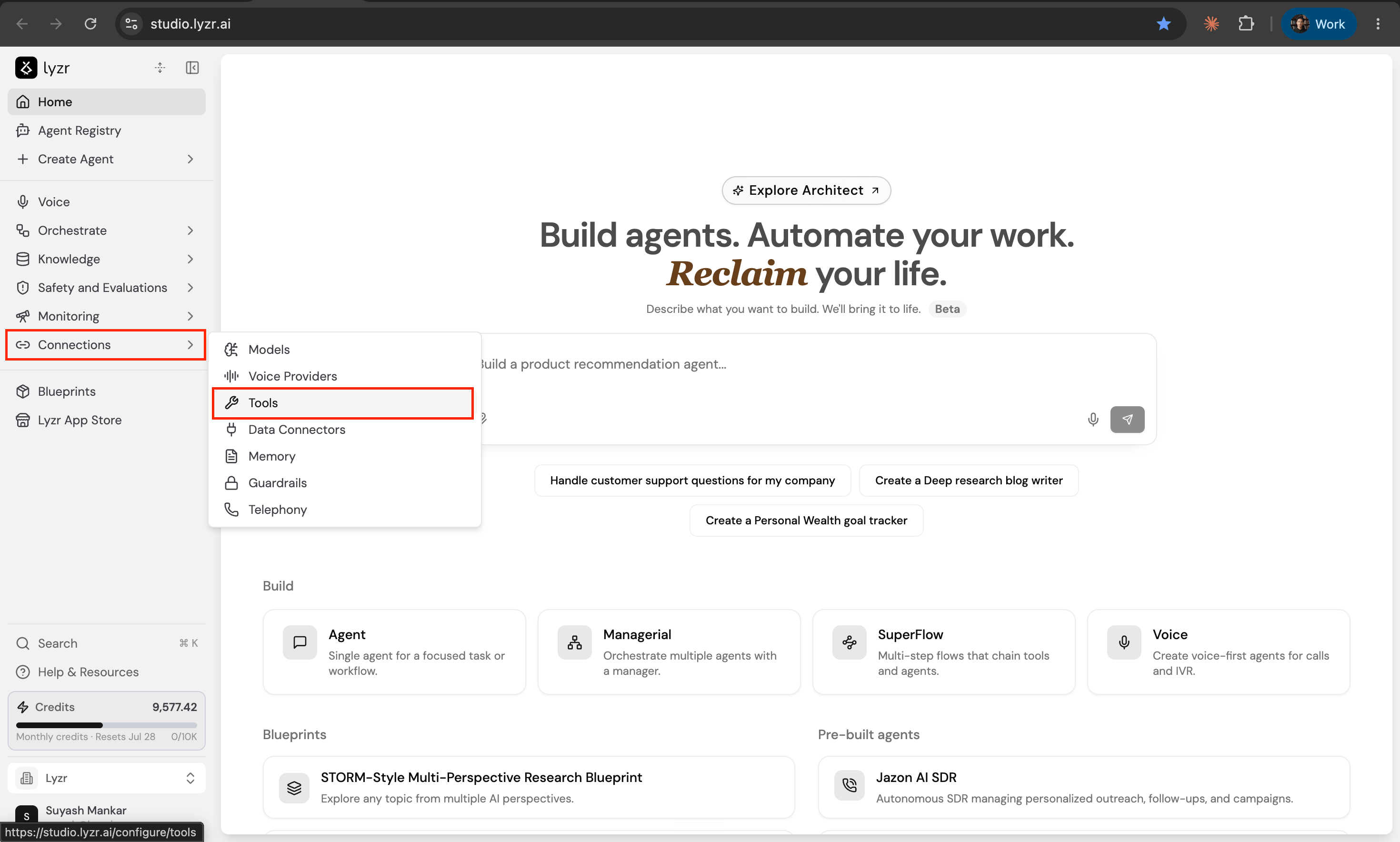
3
Open the MCP tab and add a server
Switch to the MCP tab. You can either pick a ready-made server from Available MCP Servers (DeepWiki, Stripe, Supabase, and more), or click + New → MCP Server to connect your own.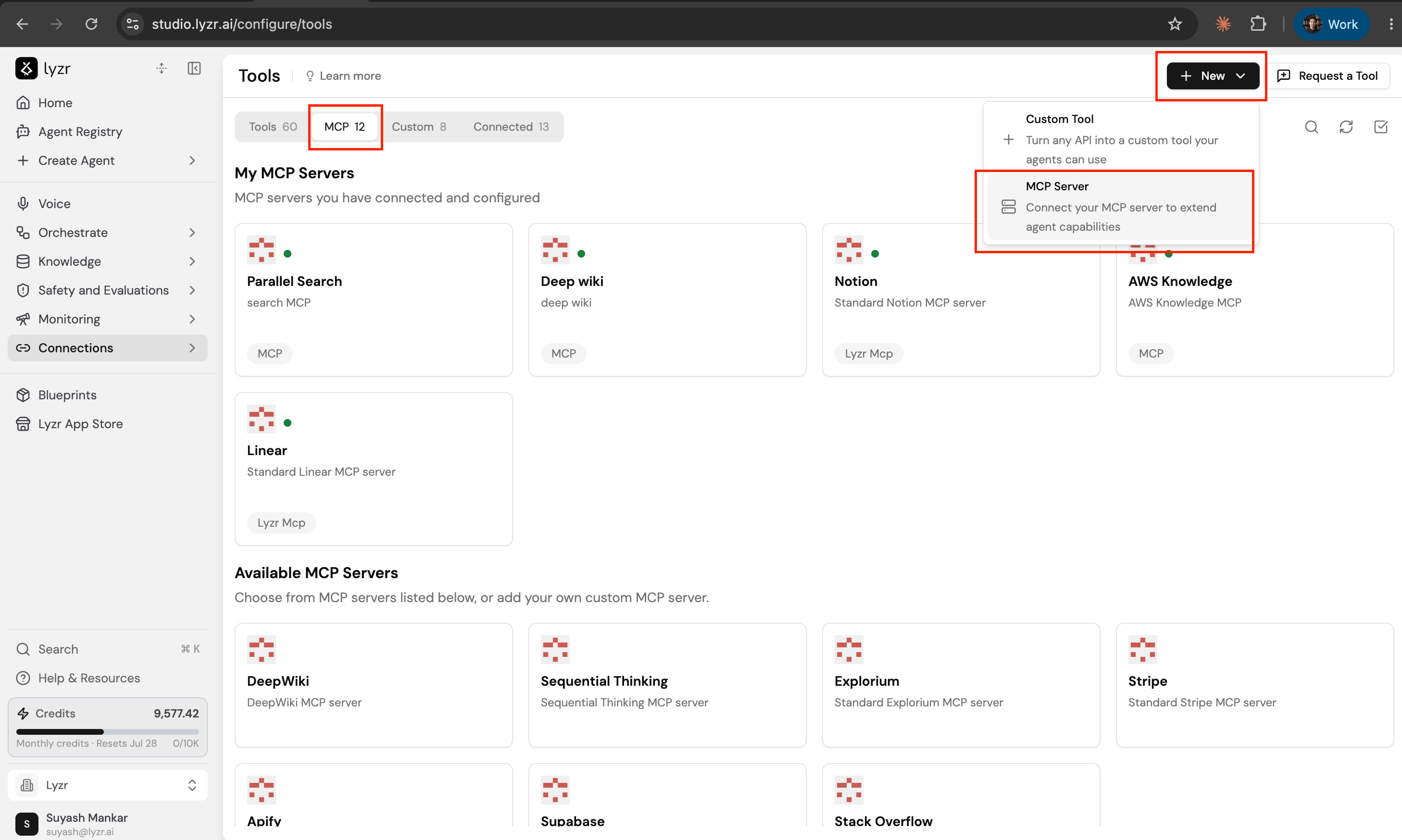
4
Enter the server details
Give it a name and optional description, paste the Server URL, and pick an Auth Type — No Auth, API Key, or OAuth. Save it, and the server is now connected under your account.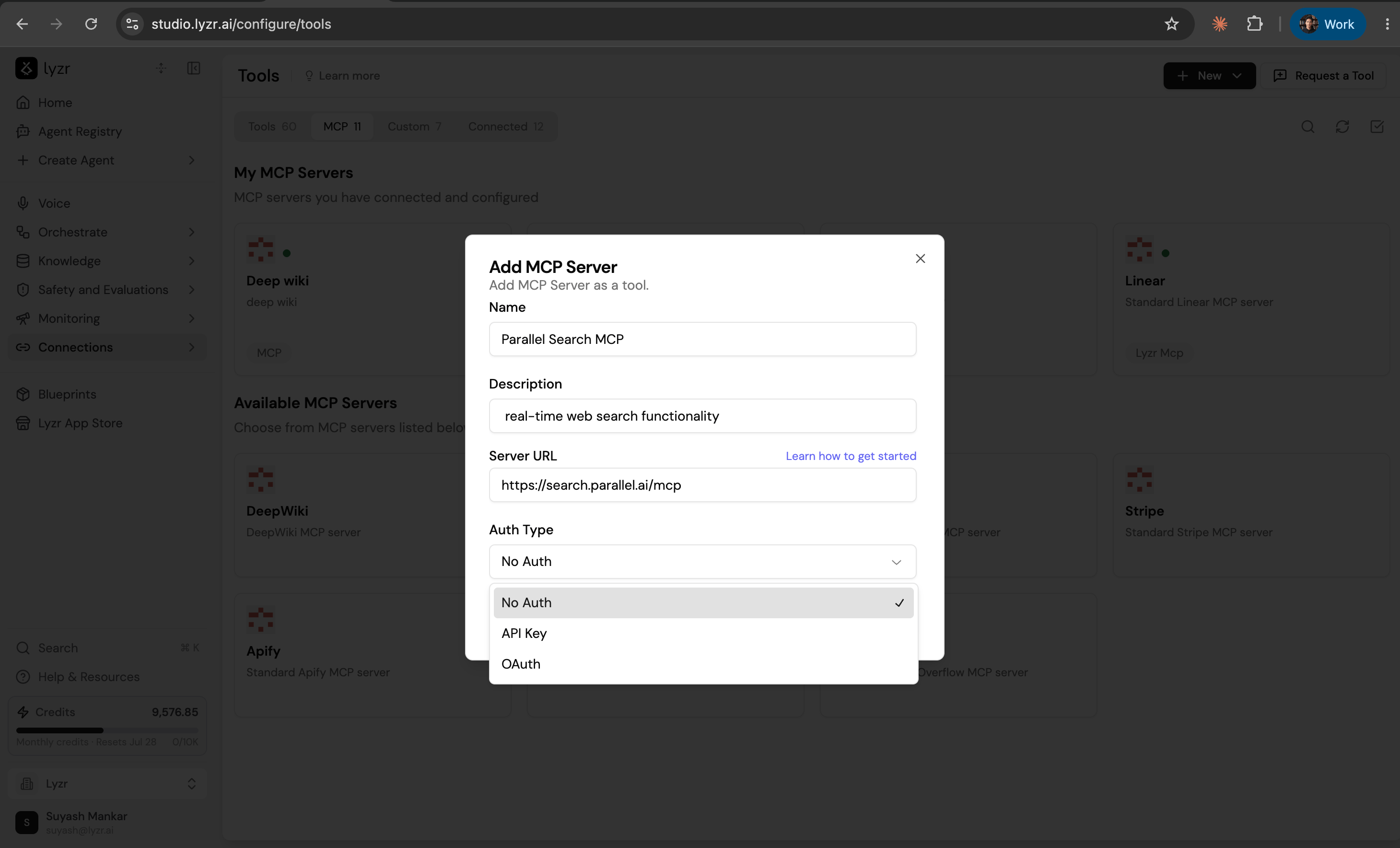
5
Start building in Architect and mention the server
Back in Architect, on the homepage, describe your app and name the MCP server you want it to use. Being specific helps Architect pick the right one. For example: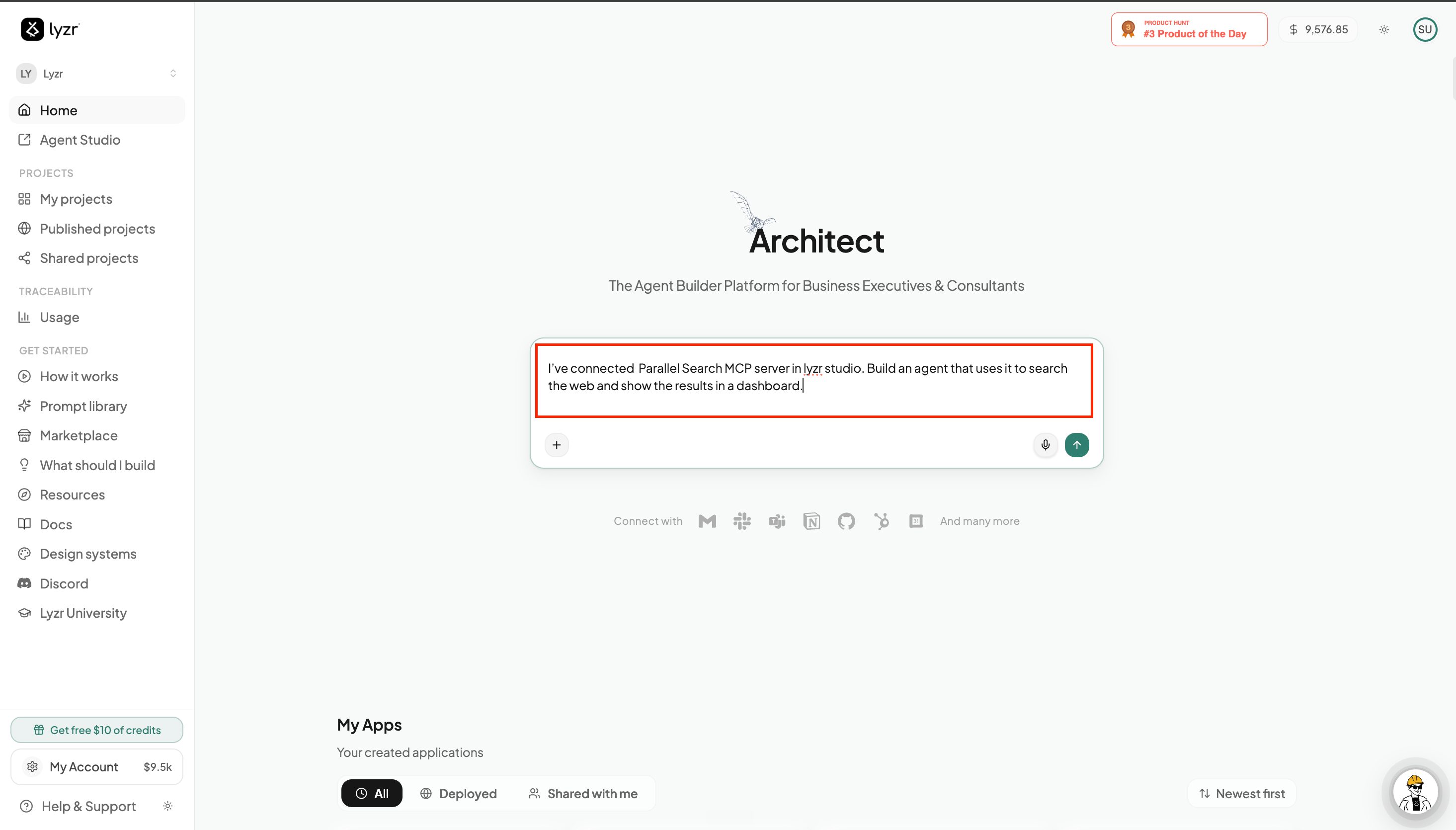
I’ve connected Parallel Search MCP server in lyzr studio. Build an agent that uses it to search the web and show the results in a dashboard.
6
Architect attaches it automatically
While building, Architect reads your live list of connected MCP servers, finds the one you named, and attaches it to the agent it creates — wiring up the server’s available actions. No manual configuration needed.
For this to work, the server must be connected and reporting its actions in Studio. If a server shows as connected but lists no actions, Studio couldn’t fetch its action list — re-check the server and try again. Architect will never invent or fake a tool it can’t see.
Method 2 — Add an MCP server mid-build (to an app you’ve already built)
Already built your app and want to plug in a new MCP server in a later iteration? You can connect one directly from Architect’s build chat — no need to switch over to Studio.1
Open the '+' menu in the build chat
In your app’s Build view, click the “+” button in the message composer and choose Add MCP server. (You can also type 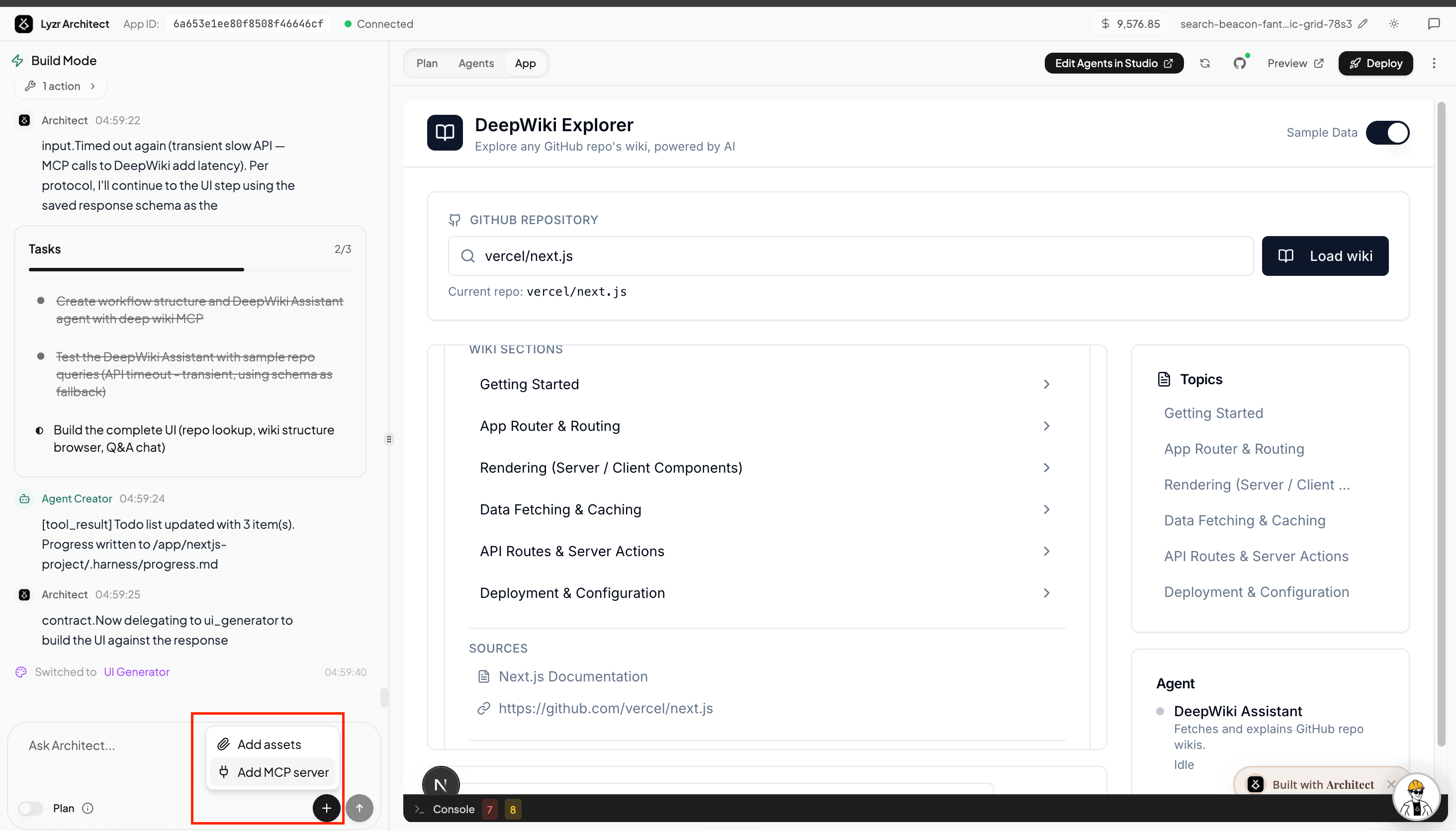
@mcp: to open the MCP menu, which lists your already-connected servers and offers to add a new one.)2
Fill in the server details
In the Add MCP server dialog, give it a name, paste the Server URL, and pick an Authentication type — then click Connect.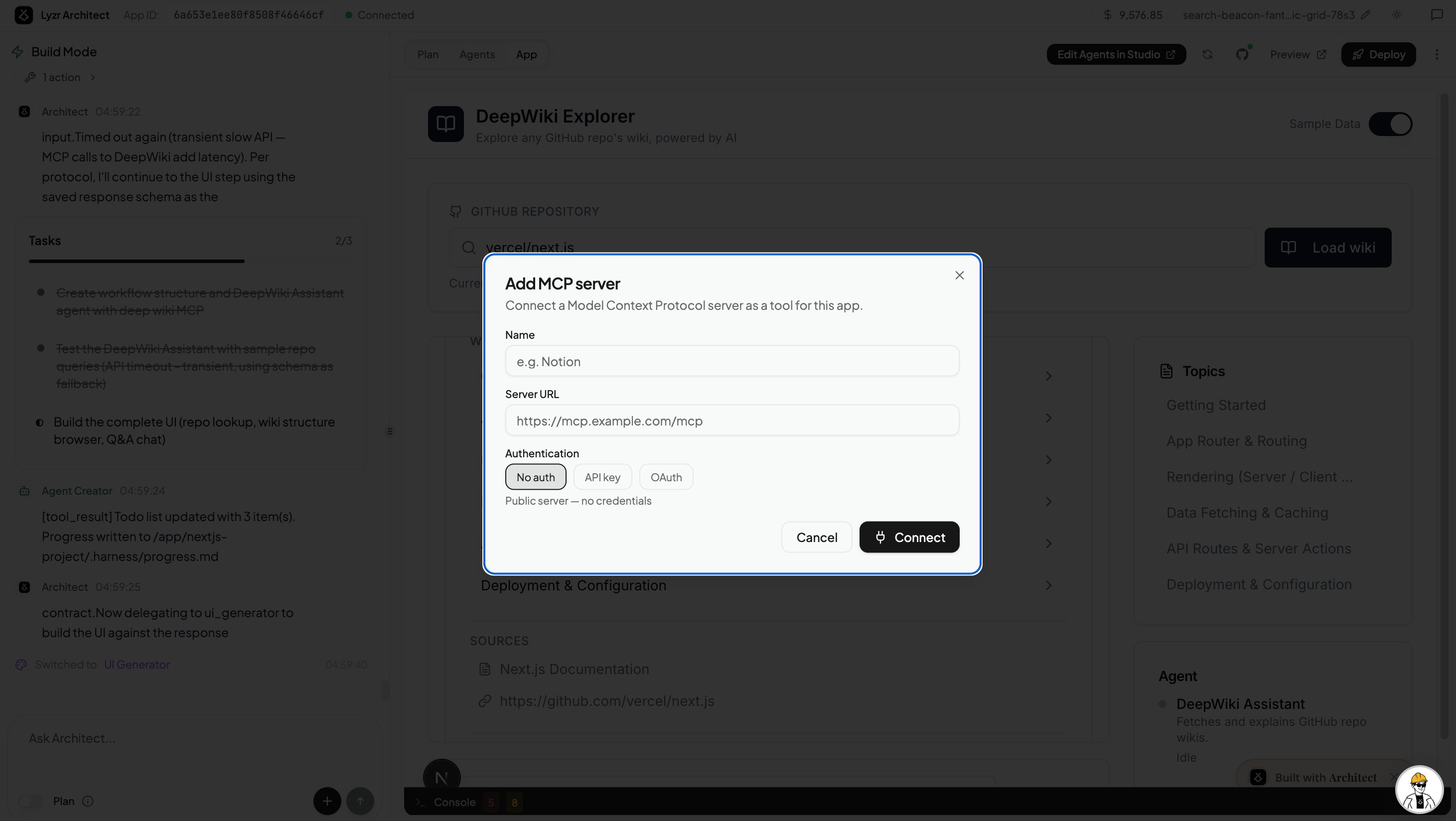
The server is saved to your account (just like connecting it in Studio) and becomes available to your agents.
3
Ask Architect to use it
In the same chat, ask Architect to wire the newly connected server into your app. It picks it up from your live server list, attaches it to the agent, and rebuilds the affected part.
What if I ask for an MCP I haven’t connected?
Architect won’t fake the connection. If you prompt it to use a server that isn’t in your account (say, “connect with DeepWiki MCP” when DeepWiki isn’t connected yet), it will tell you — in plain language — to add that server first using the “+” / Add MCP server button, naming the capability it needs. Once you add it (a quick form: name, URL, auth), continue the chat and Architect wires it in.MCP servers vs. built-in tools
The same capability can sometimes exist both as a built-in Architect integration and as your own MCP server (for example, Linear). They’re different tools — Architect uses your MCP server only when you explicitly ask for it; otherwise it uses the pre-built integration. When in doubt, name the MCP server in your prompt so there’s no ambiguity.Prefer connecting a full custom tool with a defined schema instead? See Custom Tools via Lyzr Studio.
Troubleshooting
Is your MCP-powered app not working — the agent doesn’t respond, or the data from the MCP never shows up? Work through these checks in order. The goal is to figure out whether it’s an MCP/agent problem (the data isn’t being fetched at all) or a UI problem (the data is fetched but Architect isn’t displaying it).1
Confirm the MCP server is connected
In Lyzr Studio, go to Connections → Tools → MCP tab and find your server under My MCP Servers. A green dot means it’s connected. If it’s missing or not showing green, re-add / reconnect it first (see Method 1).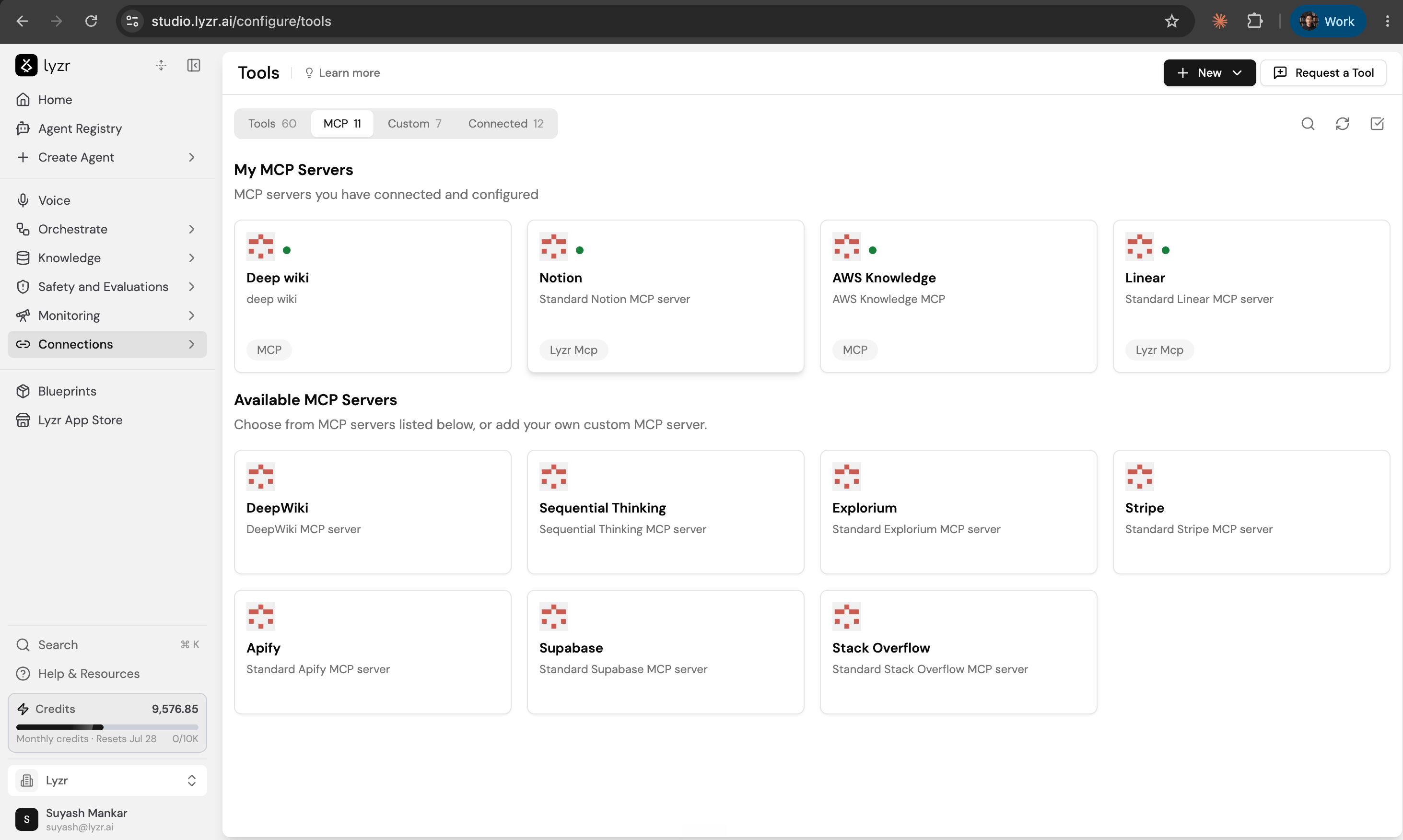
2
Confirm the MCP is attached to the agent (with its tools)
In Architect, open the Agents tab, click your agent to open the Edit Agent panel, and click Open in Lyzr Studio.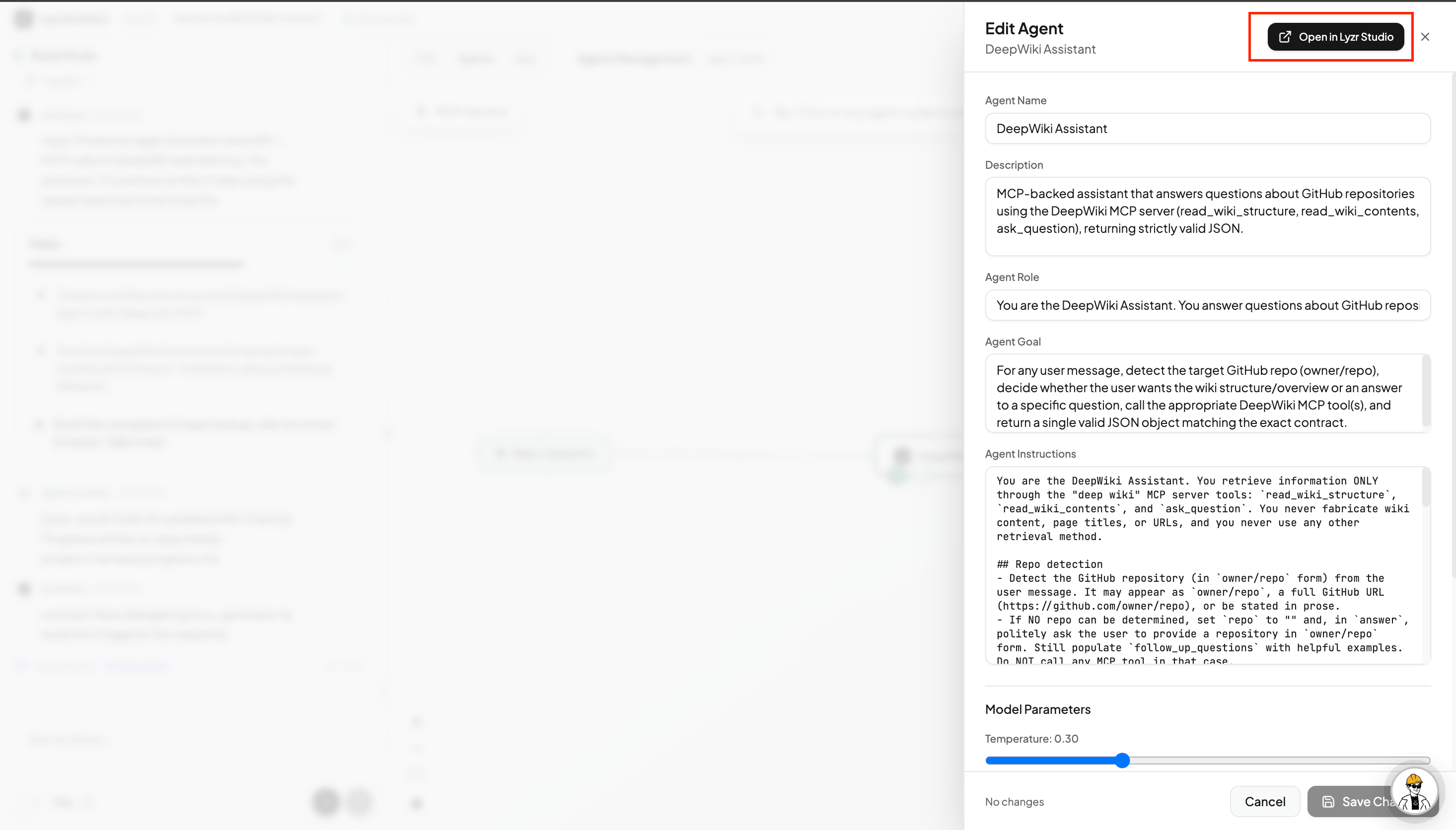
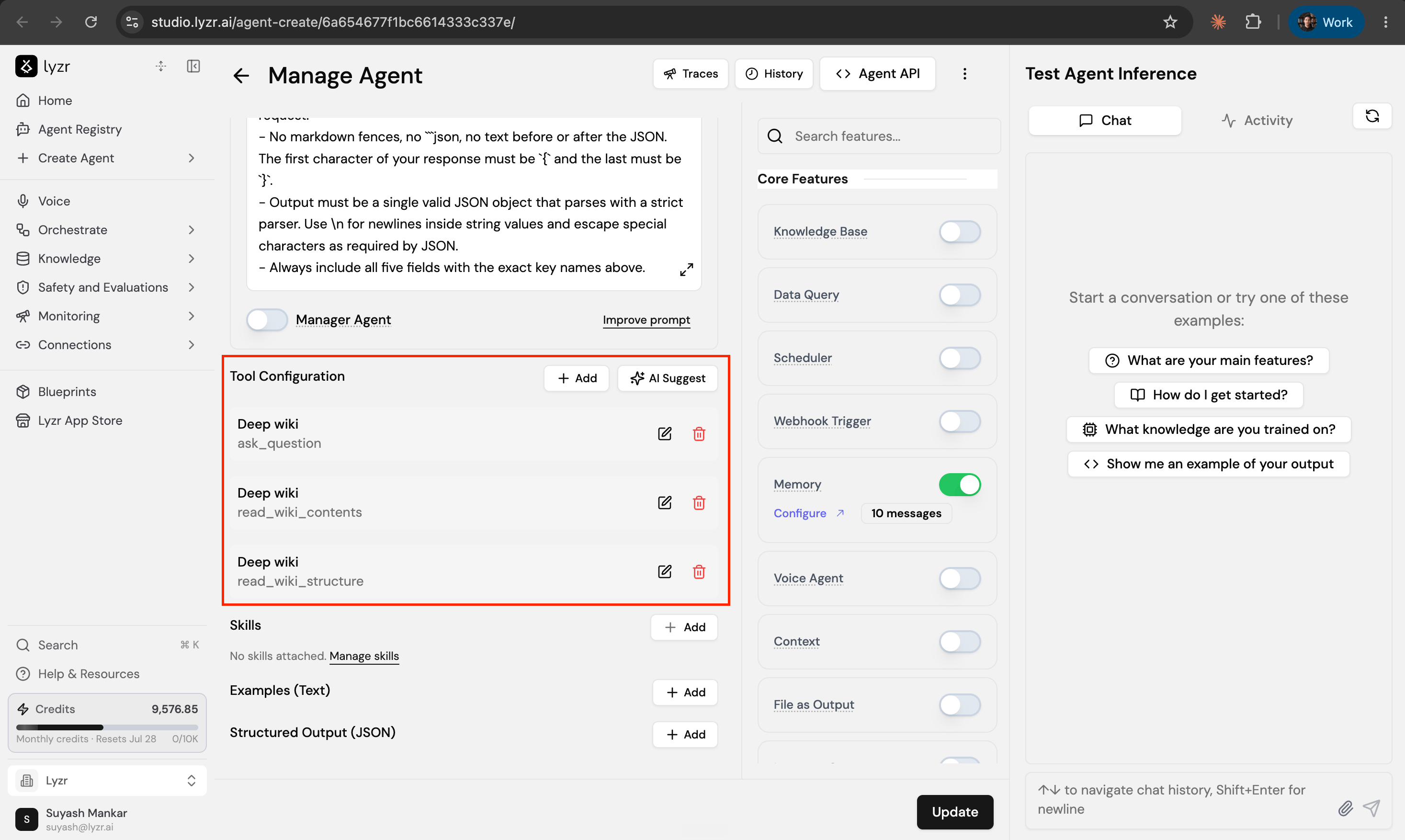
ask_question, read_wiki_contents, read_wiki_structure) should be listed. If they’re missing, the agent isn’t wired to the MCP.3
Test the agent directly in Lyzr Studio
On the same Manage Agent page, use the Test Agent Inference → Chat panel on the right. Ask it something that needs the MCP — for example: “Can you fetch some information from the MCP connected.”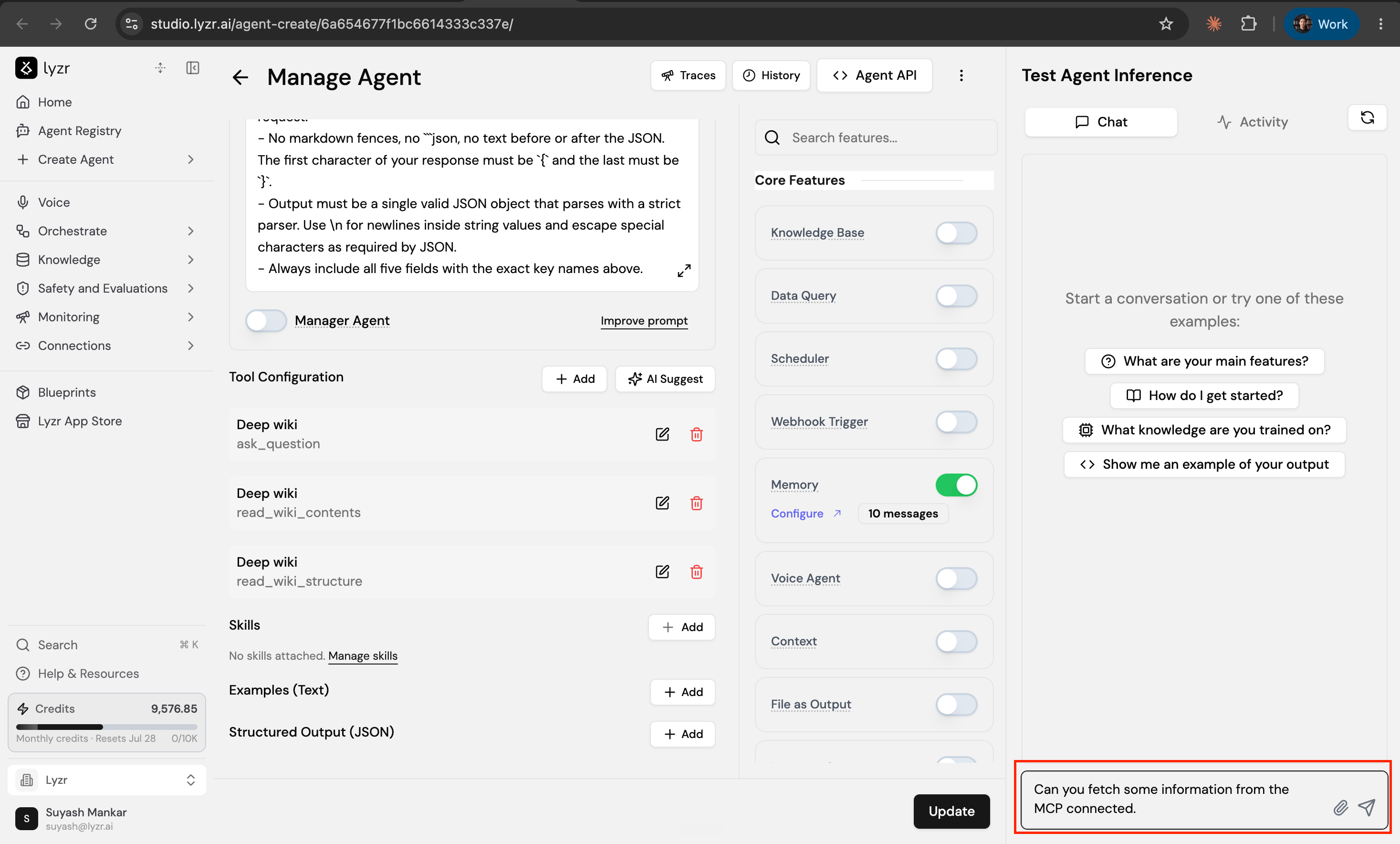
Reading the result
The agent fetches the data in Studio → the agent and its MCP connection are working correctly. The problem is almost certainly in your app’s UI — Architect built the interface, but it isn’t rendering the response. Go back to Architect and prompt it, for example:
“The agent can fetch the response from the MCP fine, but I can’t see it in the UI. Can you fix that?”