Get Inspired & Personalize
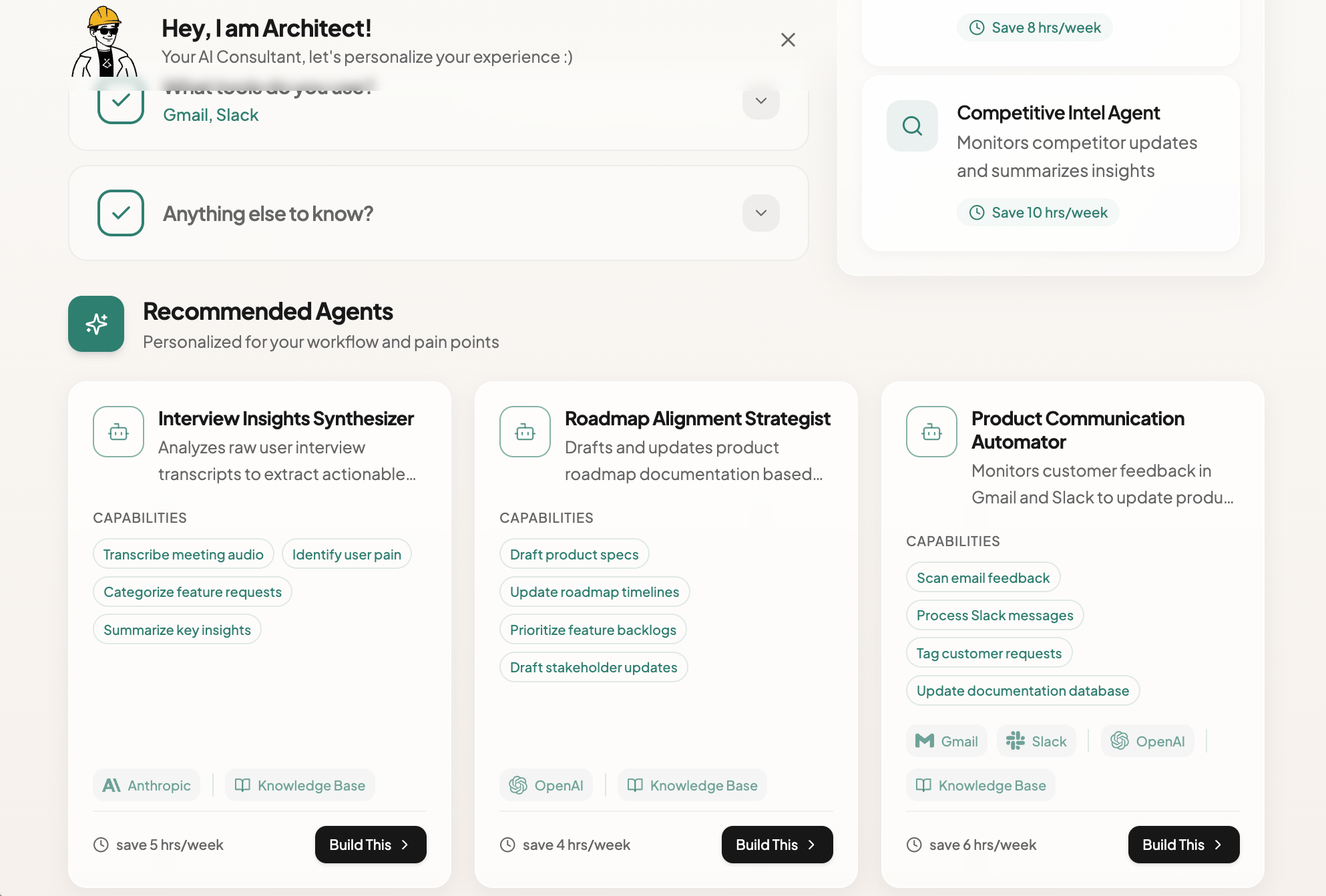
Best for: Users who know they want to automate work but aren’t sure exactly what to build first. When you first enter Architect, you aren’t just greeted by a blank prompt. You meet your AI Consultant. Before you write a single line of text, Architect helps you identify the highest-value opportunities for automation in your specific role.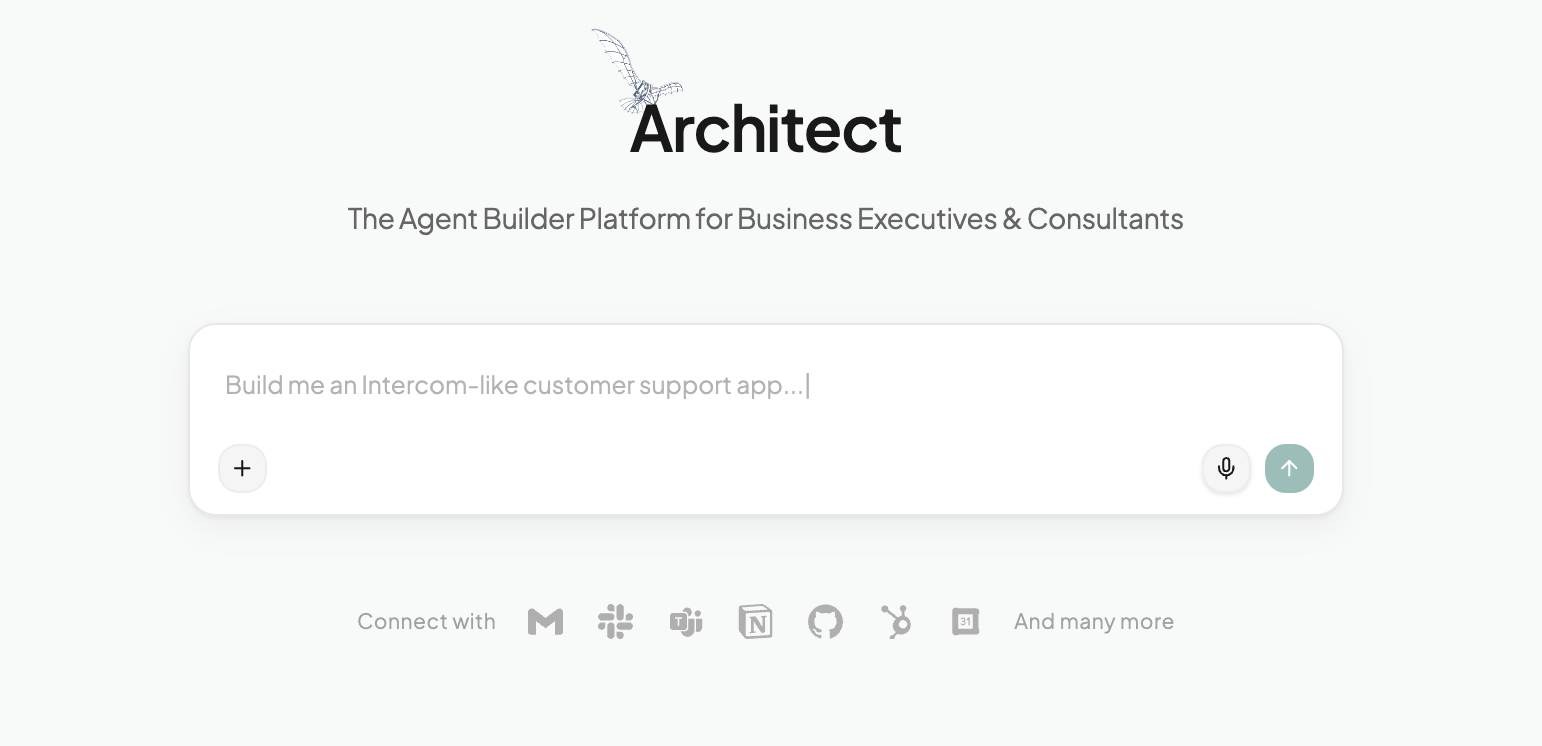
How it works:
- Tell us about your role: Input your job title (e.g., “Sales & Marketing”).
- Identify Bottlenecks: Tell Architect what takes up the most time in your week (e.g., “Lead Outreach” or “Scheduling”).
- List your Stack: Mention the tools you already use (e.g., Apollo, Linear, Google Calendar).
The Result: Architect immediately generates Tailored App Ideas on the right-hand panel. These aren’t generic suggestions; they are specific agentic use cases mapped to your pains, complete with estimated time savings (e.g., “Lead Nurturing Agent - Save 15 hrs/week”).
Prompting Guidelines
The quality of your app depends on the quality of your initial prompt. Since Architect uses “vibe-coding,” you don’t need to speak technical jargon, but you do need to be clear about intent.Effective Prompting Checklist:
- The “Who”: Who is this app for? (e.g., “A dashboard for HR managers,” “A study aid for medical students”)
- The “What”: What is the core problem? (e.g., “They spend too much time manually screening resumes”)
- The “Vibe”: How should it feel? (e.g., “Professional and data-dense,” “Playful and gamified,” “Minimalist and text-heavy”)
- Success Criteria: What does a “done” task look like? (e.g., “The user should get a summarized PDF report at the end”)
❌ Bad Prompt
“Make an app with a text box and a button that calls an API.”
✓ Good Prompt
“Build a travel planner where a user enters their dates and interests, and the app generates a day-by-day itinerary including flight options and hotel recommendations.”
The Build Process
1
Phase 1: Plan
Architect acts as your Lead Product Manager. It analyzes your prompt and generates a detailed Product Requirements Document (PRD).What happens here?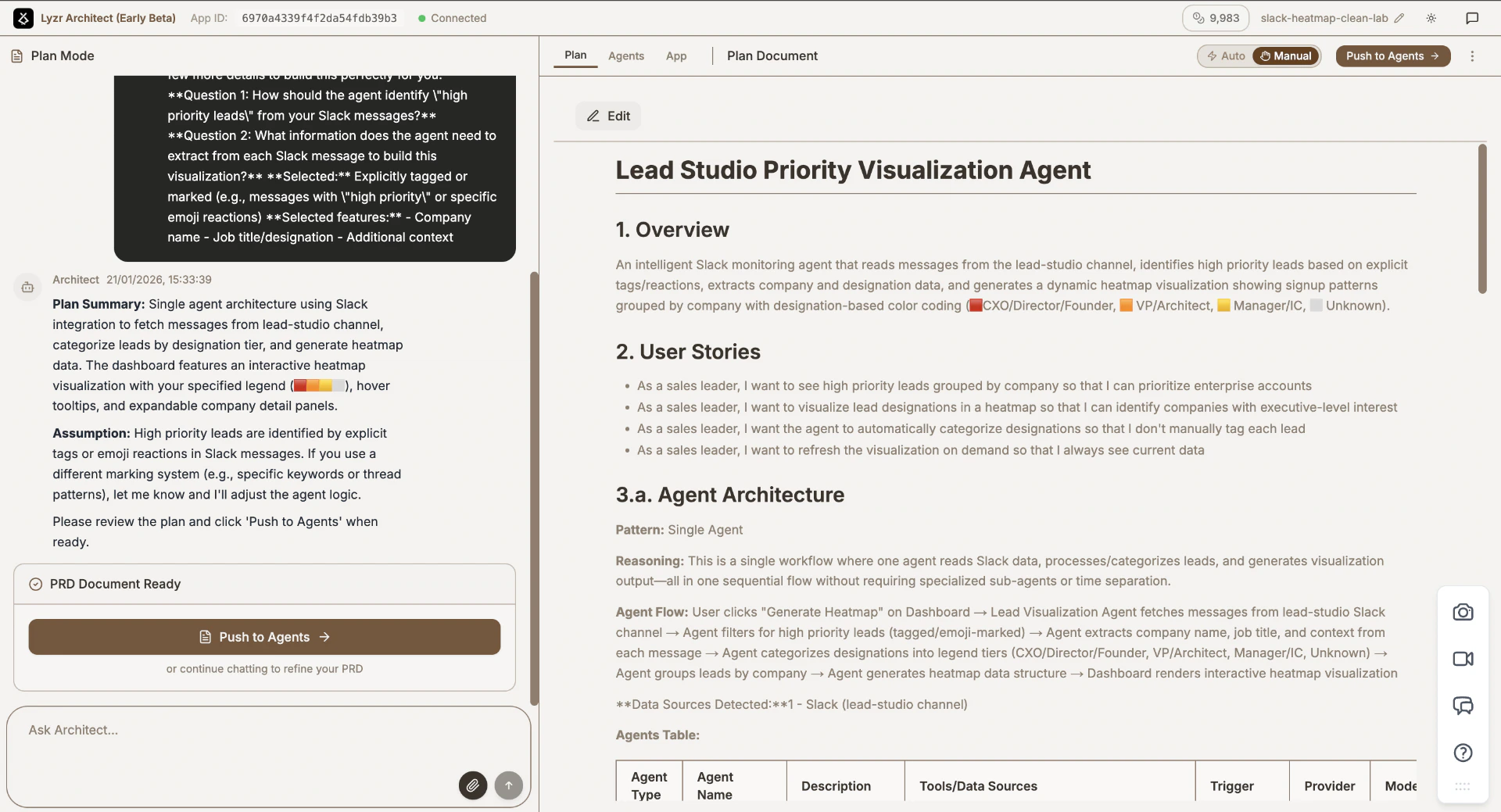
- Architect outlines the User Journey.
- It identifies which AI Agents are needed (e.g., a “Researcher Agent” and a “Writer Agent”).
- It defines the App UX and wireframe structure.
- Agent Roles: Are the agents correctly identified? Does the “Researcher” have access to the web?
- Flow: Does the step-by-step user journey make sense?
- Missing Features: Did it forget that you need a “Save to PDF” button?
2
Phase 2: Agents
Once the plan is locked, Architect enters the engineering phase. It constructs the backend orchestration, initializing the agents, assigning them tools, and linking knowledge bases.Key Components: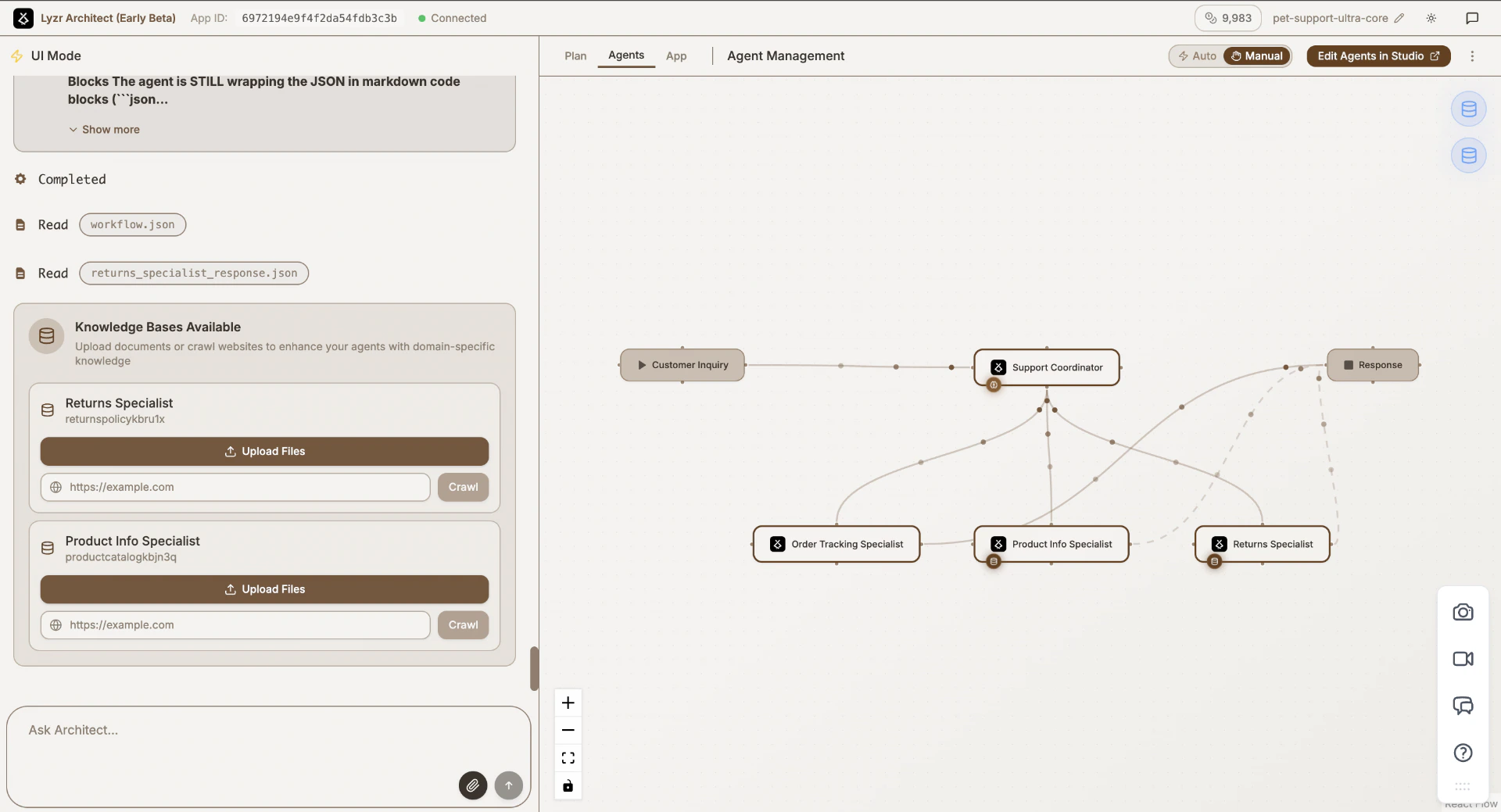
- Agents: The distinct AI personas performing tasks.
- Knowledge Base (KB): This comes into picture if your agents need to know specific proprietary info (e.g., your company’s HR policy PDF). Architect will flag if a KB is needed.
- Tools: This is where capabilities are added. If an agent needs to send an email, search the web, or query a database, a “Tool” is attached to that agent.
🔧 Refining in Lyzr StudioSometimes you need to go under the hood. You can click to edit any agent, which will take you to Lyzr Studio ↗.
- Edit Instructions: Fine-tune the system prompt for specific agents.
- Test Independently: Run test queries on just one agent to ensure it behaves correctly before the full app is built.
3
Phase 3: App
In the final phase, Architect builds the UX layer. It takes the structured outputs from your agents and wraps them in a polished user interface.What happens here?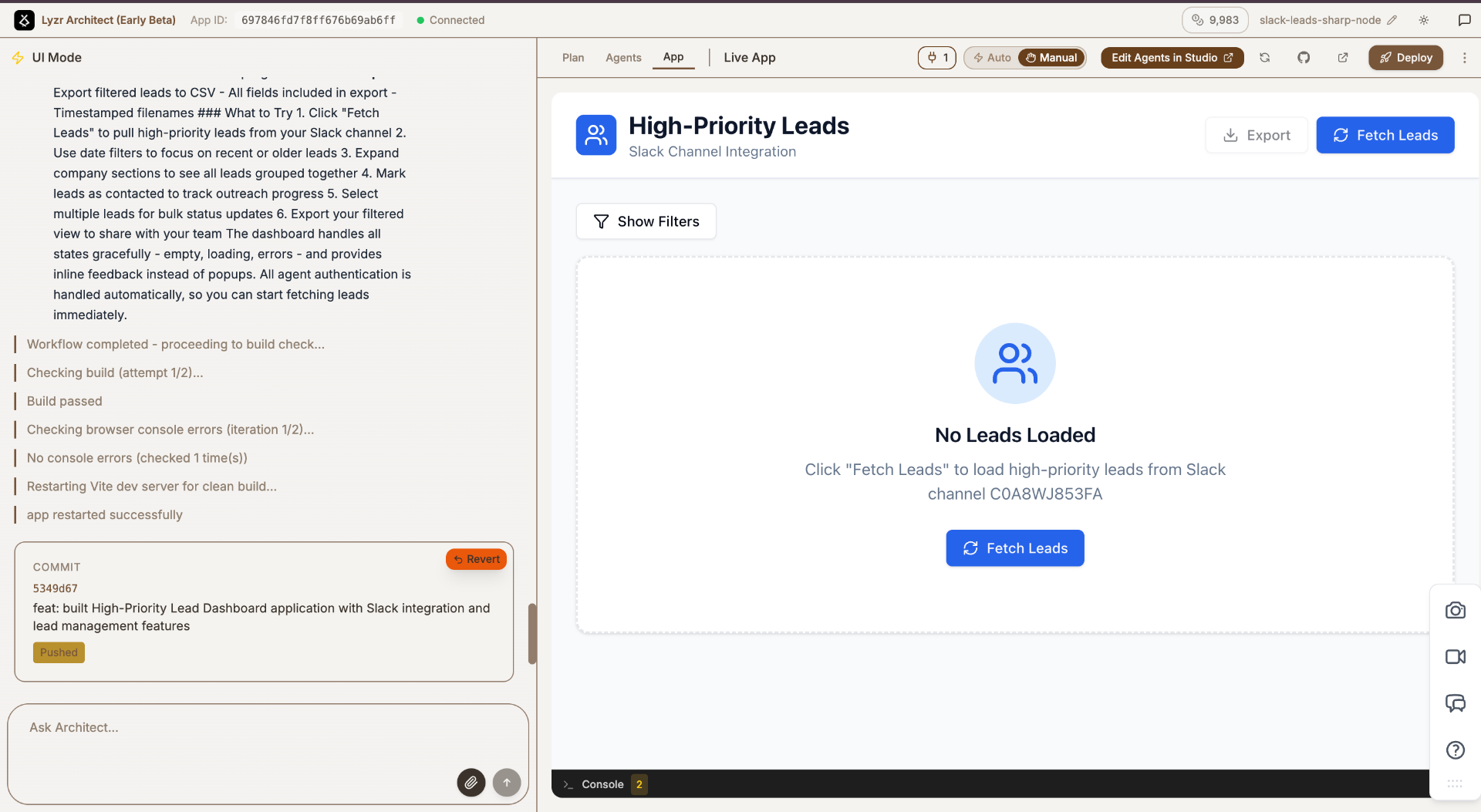
- Generation of the frontend code (React/Next.js).
- Wiring of UI components to Agent outputs.
Refining Your App
Building the app is just the beginning. At any phase, or even after the app is deployed, you can continue to chat with Architect. Example refinements:- “The Researcher Agent is too verbose. Make it more concise.”
- “Change the UI theme to dark mode.”
- “Add a new feature: allow users to email the results.”
Deploying Your App
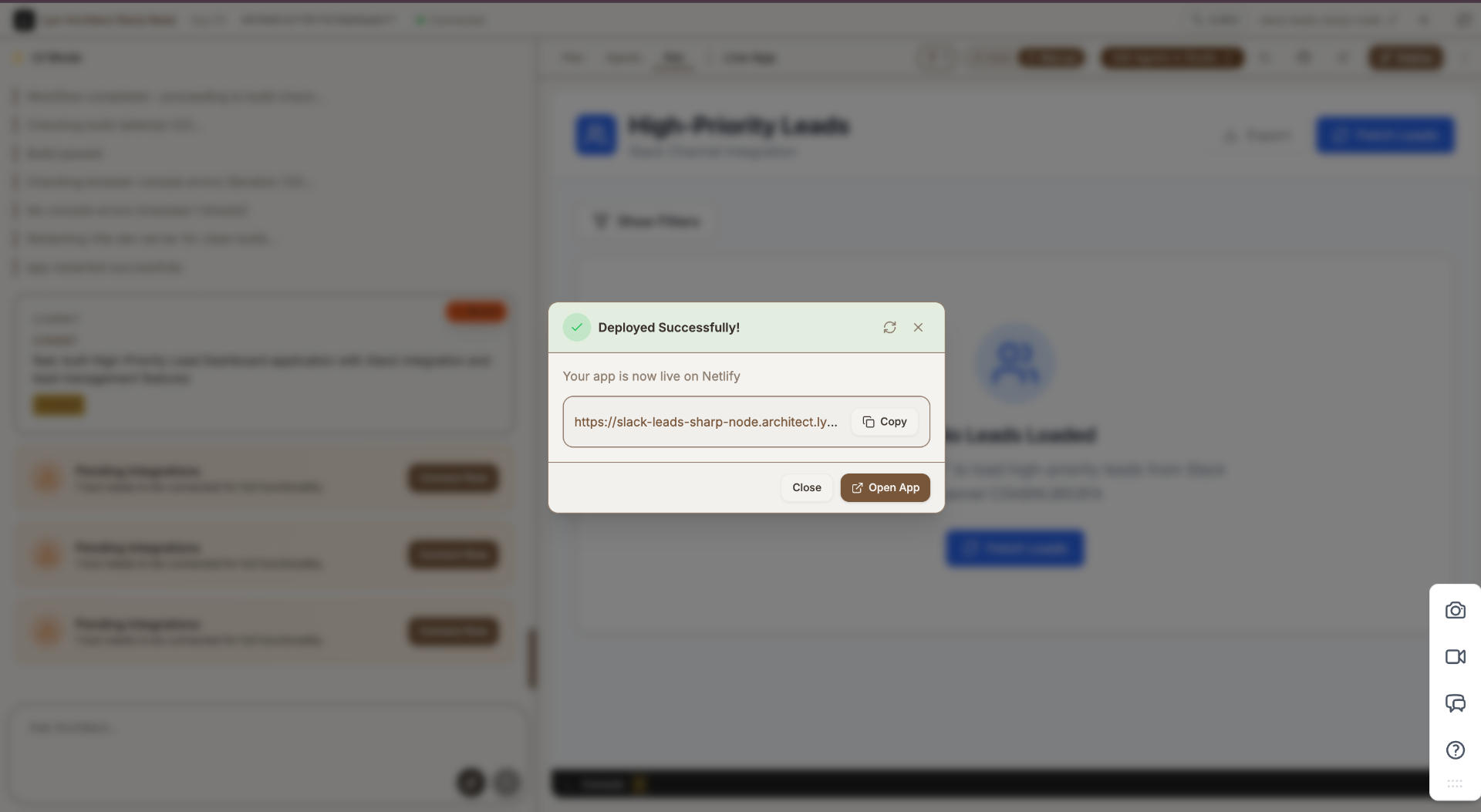
Once you are satisfied with the preview, you need to publish it to the world.- Action: Click the Deploy button on the top right corner.
- Outcome: Architect will push your application to a live production environment.
- Share: You will receive a unique, public URL (e.g., travel-planner.architect.new). You can share this link immediately with users or colleagues.