

Set Up Your Theme
1
Open the theme picker
From the homepage prompt box, click the + menu and choose Select theme.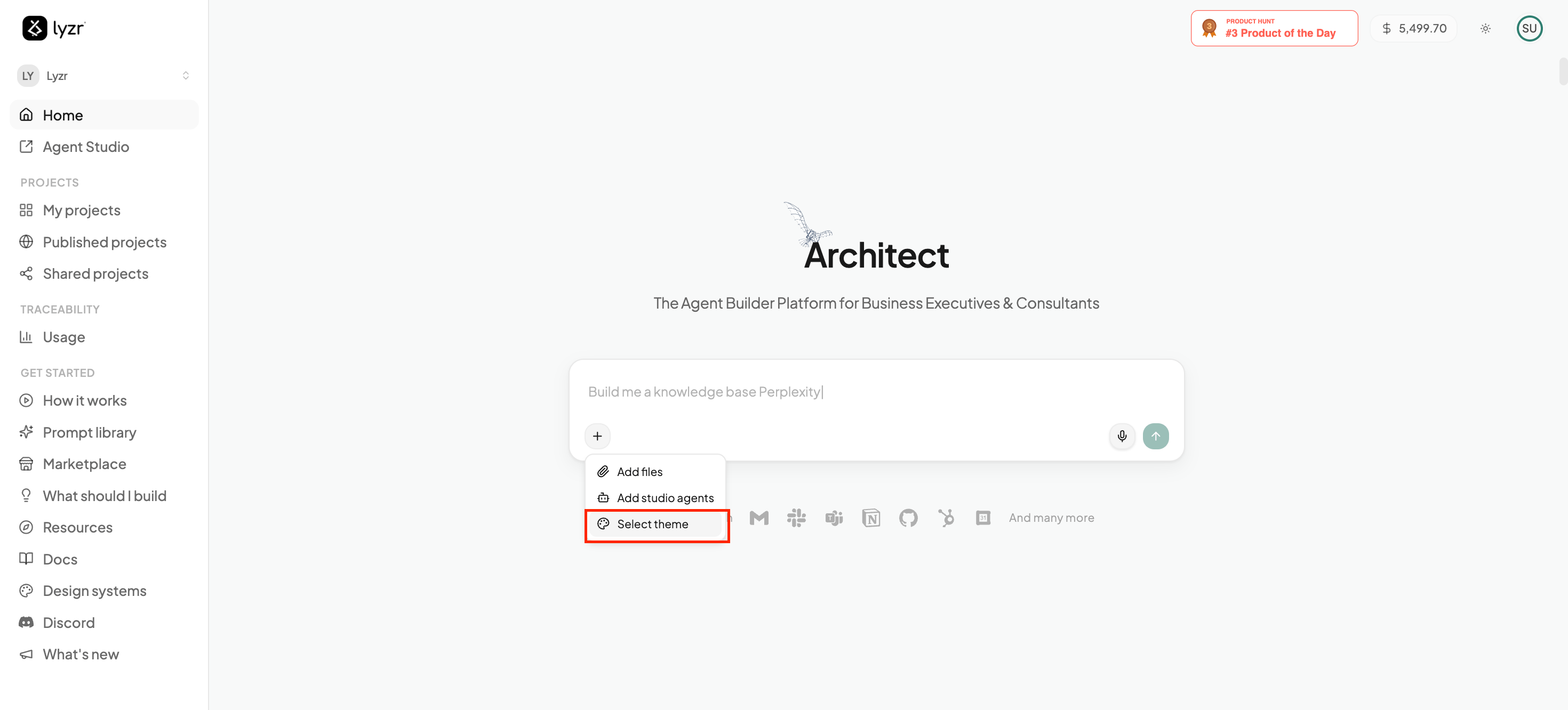
2
Choose how to import your design system
This opens the Theme Manager, where you can browse the built-in presets or click Create theme to build your own. Choosing Create theme gives you several ways to import your design guidelines (see Ways to Import below) — pick whichever matches what you already have.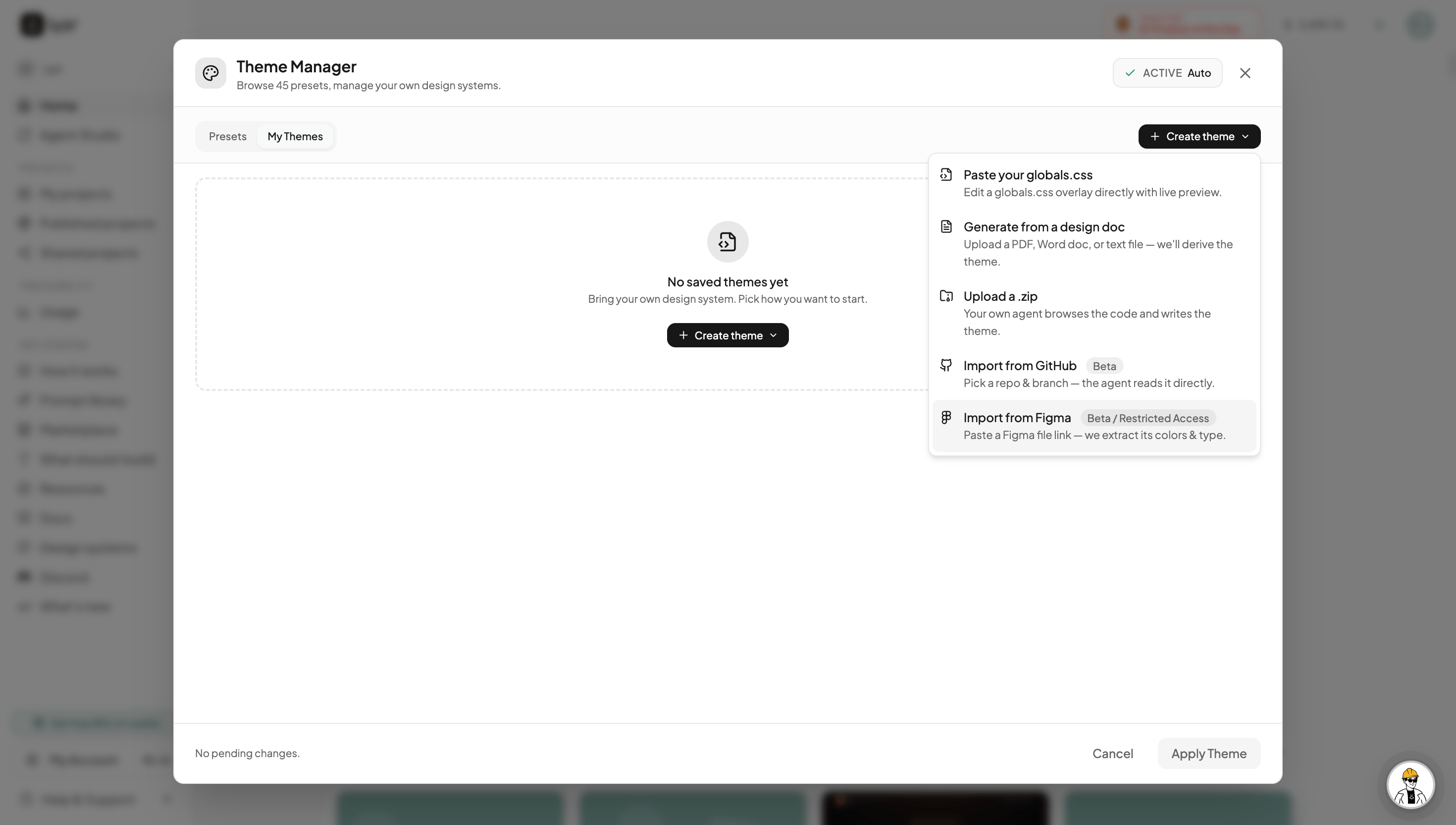
3
Refine, add instructions and assets, then save
Architect turns your import into a theme and opens the design system editor. Here you can give it a name and description, fine-tune the generated globals.css, add instructions for how the design system should be used, and attach assets such as your company logo. A live preview (Components, Text, Palette) shows exactly how the theme will look before you apply it. When it’s valid, click Save changes.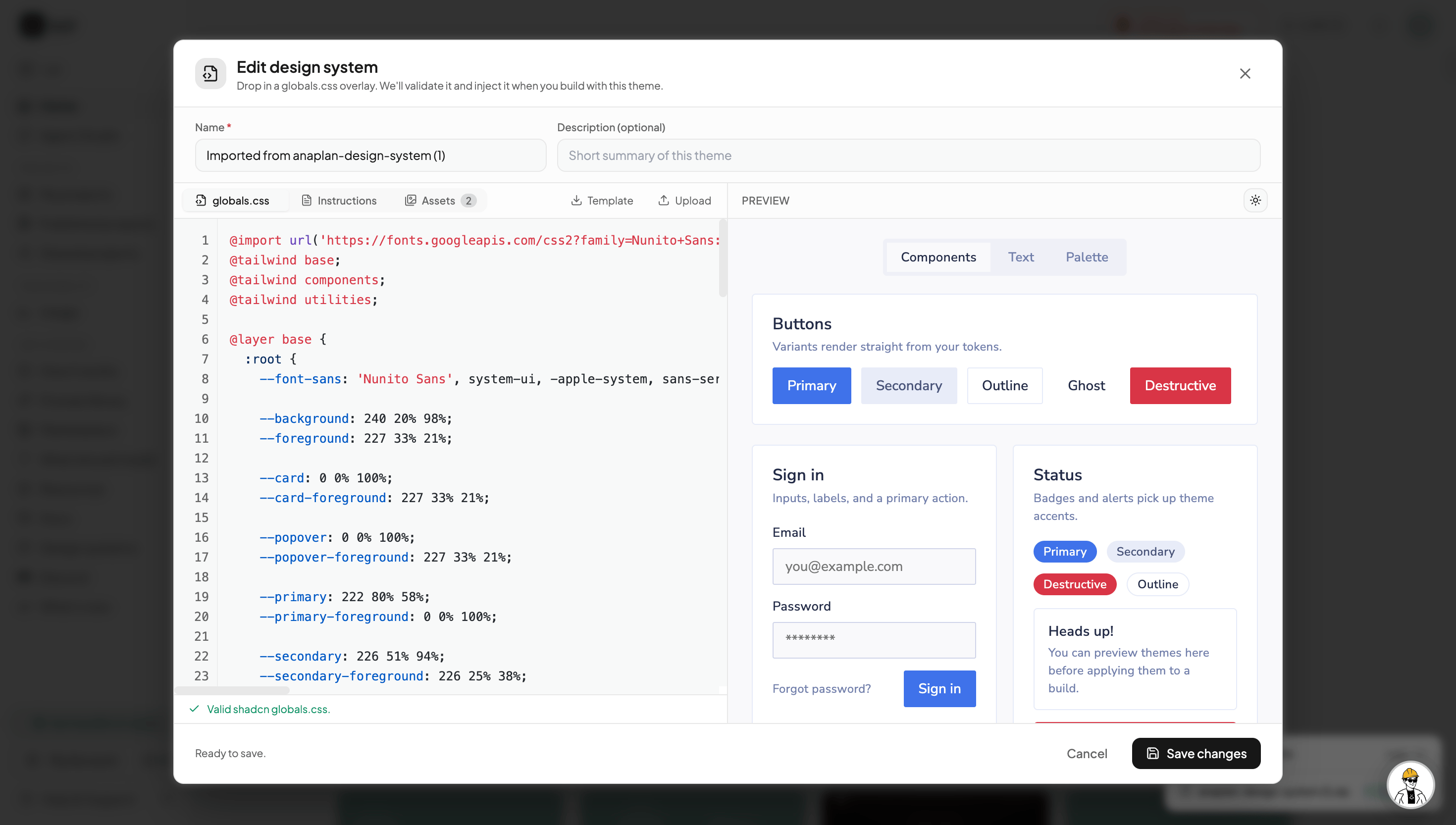
Ways to Import
Pick the source that matches what you already have — Architect handles the rest.Import from Figma
Paste a Figma file link and Architect extracts its colors and typography into a theme. (Beta — restricted access.)
Generate from a design doc
Upload a PDF, Word doc, or text file of your brand or design guidelines, and Architect derives the theme from it.
Import from GitHub
Connect a repository and pick a branch — Architect reads the code directly and builds a matching theme.
Upload a .zip
Drop in a zip of your codebase and Architect browses the code to write a theme that matches it.
Paste your globals.css
Already have a Tailwind / shadcn
globals.css? Paste it in and edit it directly, with a live preview as you go.Fine-Tune Your Theme
Once imported, the design system editor lets you shape every part of the theme:Design tokens (globals.css)
Edit the underlying CSS variables — colors, fonts, radii, and more. Architect validates it as a proper shadcn
globals.css.Instructions
Add notes and rules about how your design system should be applied, so Architect honors your conventions while building.
Assets
Upload brand assets — like your company logo — for Architect to use across the apps it generates.
Live preview
Preview the theme on real components, text, and the full color palette before applying it to any build.
Once saved, your custom theme lives in the Theme Manager alongside the presets. Select it before you build (the same + → Select theme menu) and Architect applies it to the generated app — giving every project you build a consistent, on-brand design.