

Planning mode opens automatically as soon as you enter a prompt on the homepage. In a hurry? You can skip ahead to the build at any time with Start Building.
How Planning Mode Works
1
Start with a prompt
Describe what you want to build in plain language from the homepage — for example, “Build a marketing team of agents that can write blog posts, create social media content, perform SEO analysis, and generate graphics for my brand.” No structure or technical detail required.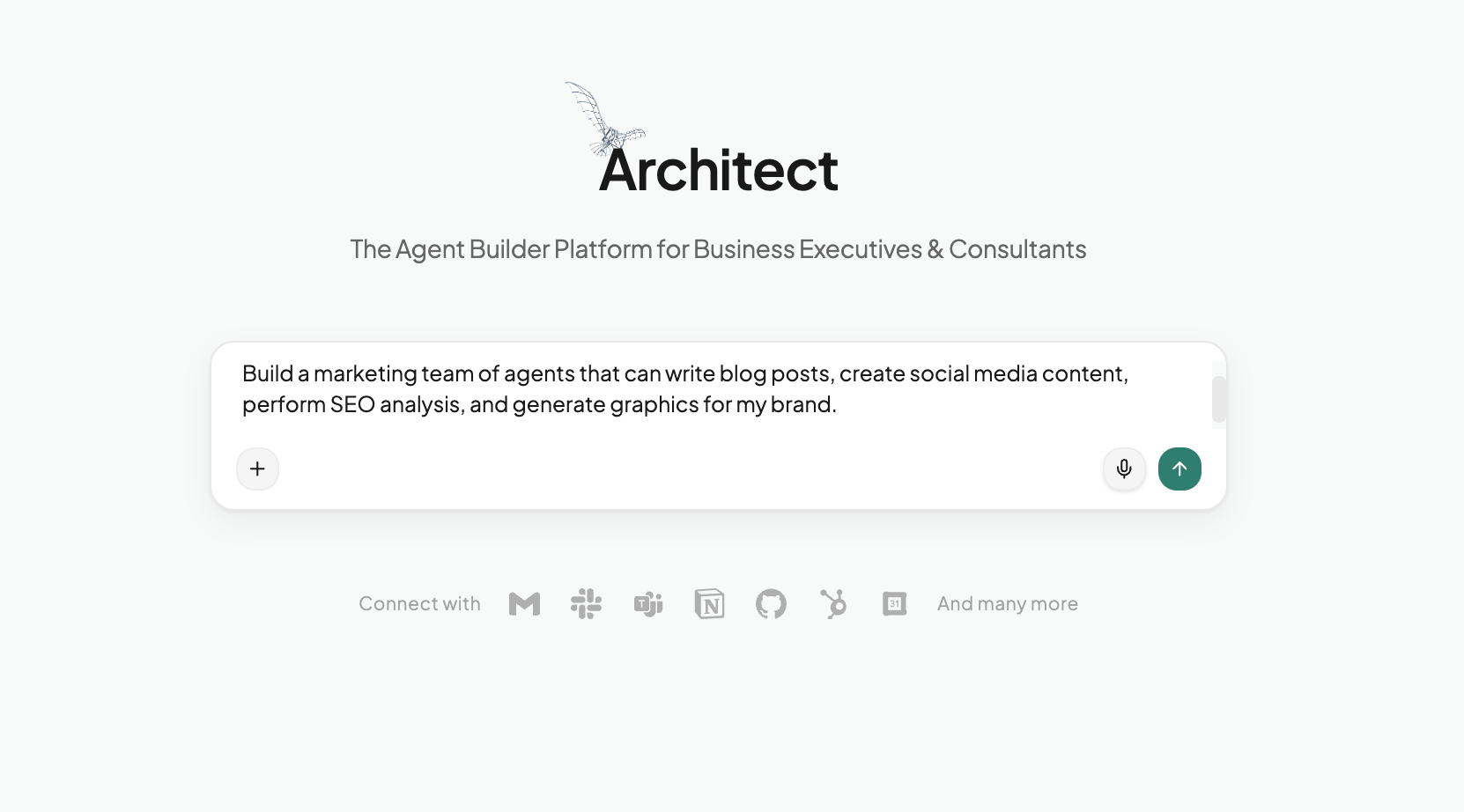
2
Brainstorm and shape the scope
Architect opens Planning mode and asks a few focused questions to understand your use case — which content types matter most, how hands-on you want to be, whether you need to save data across sessions, and more.Pick from the suggested options or just type your own thoughts to brainstorm back and forth. Every answer sharpens the plan, so the result is shaped around your actual workflow rather than a generic template.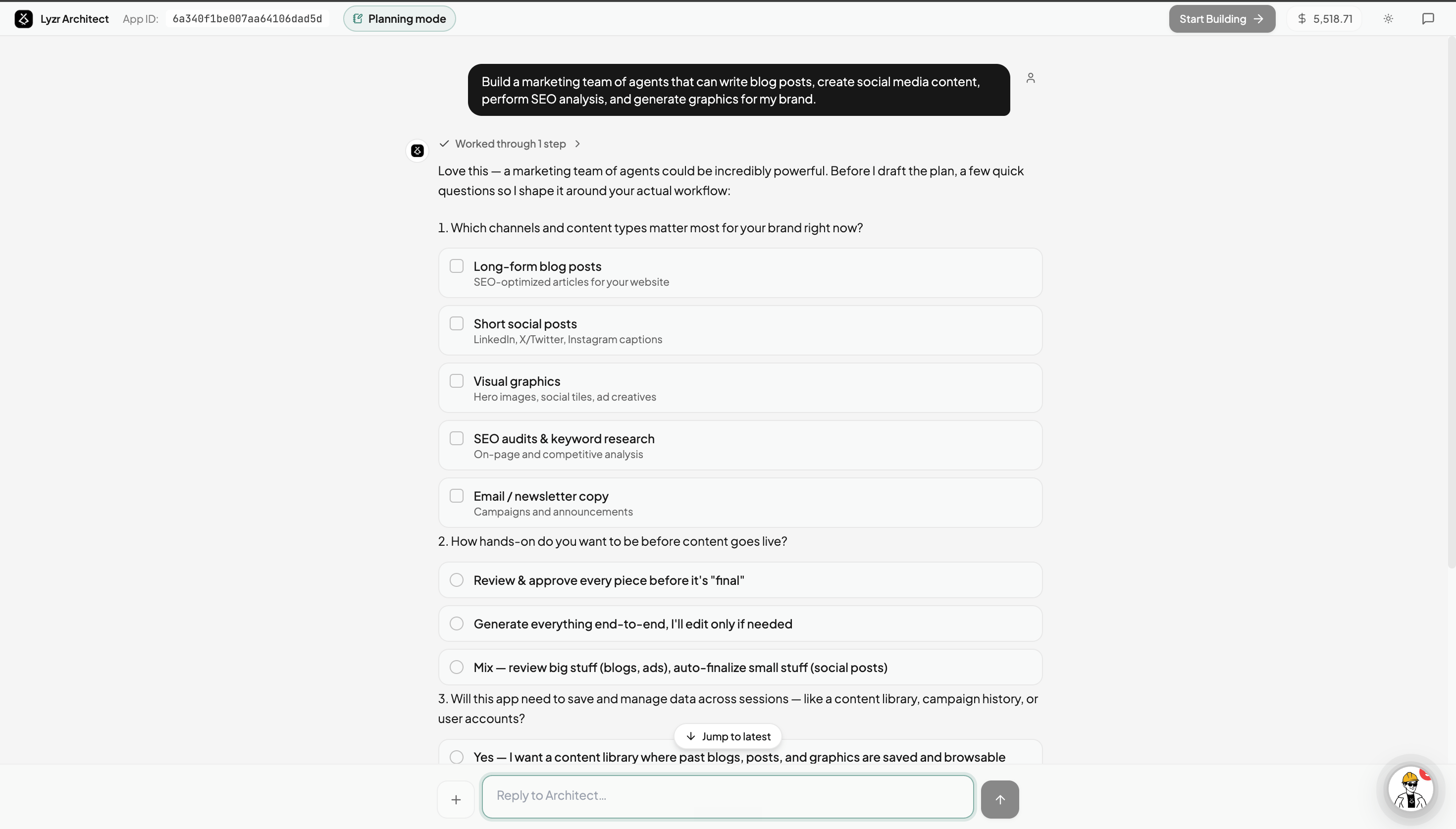
3
Review the plan (PRD)
From the conversation, Architect drafts a complete plan / PRD in the right panel — an overview, user stories, the agent architecture (which agents are needed and how they’re orchestrated), detected data sources, and a full agent table listing each agent’s model, tools, and role.Want to change something? Just keep chatting — the plan updates live as you refine it.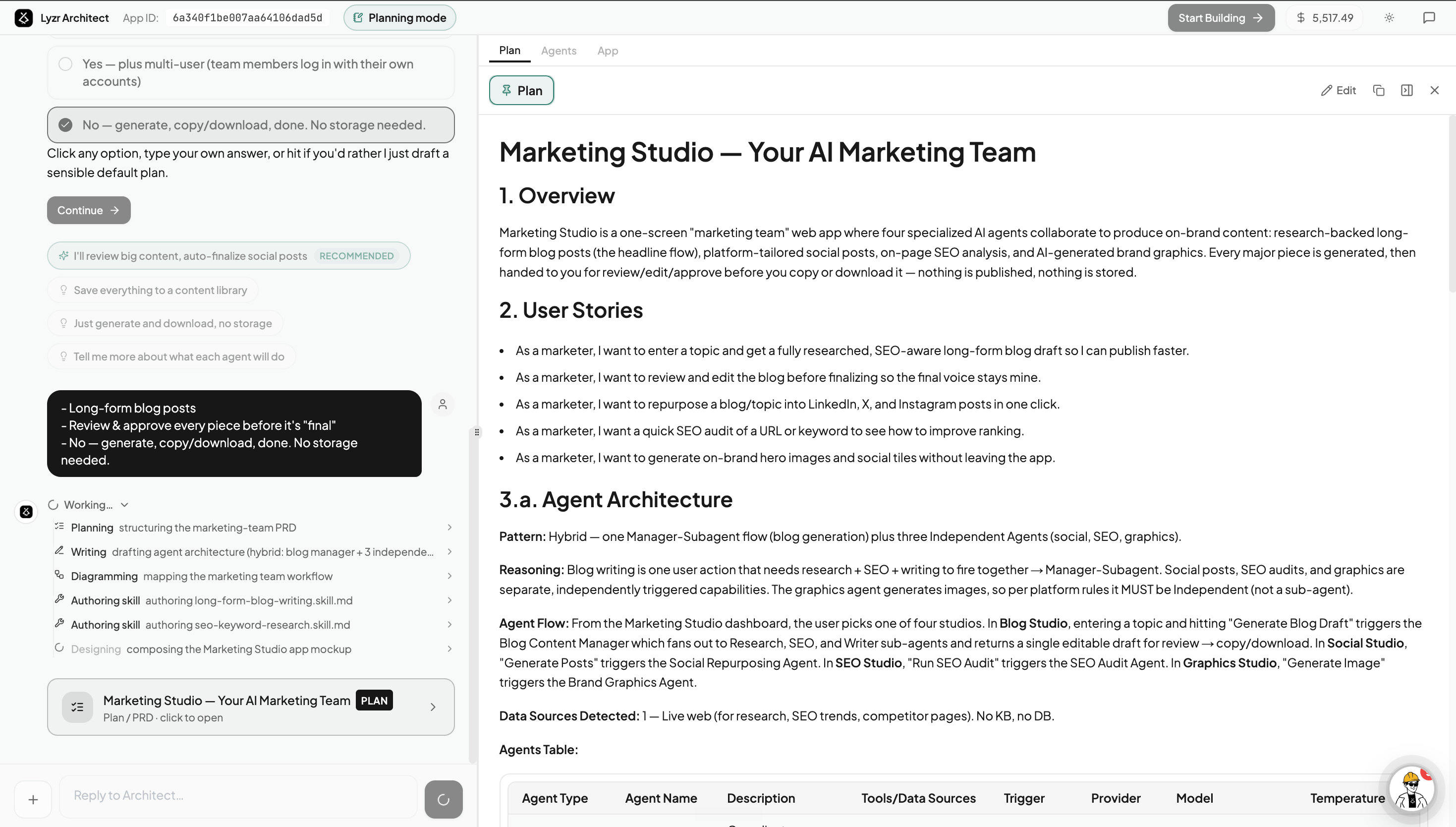
4
Preview the app and explore artifacts
Alongside the plan, Architect generates an App Mockup — a high-fidelity preview of how your finished app’s UI will actually look — so you can brainstorm and iterate on the design before it’s built. It also produces a workflow diagram of the agent flow and any skill files for specific tasks.Each artifact opens in its own tab. Recommended follow-ups (for example, “design the Blog Studio editor” or “author a skill for the Social Repurposer”) appear as one-click suggestions so you can keep expanding the plan.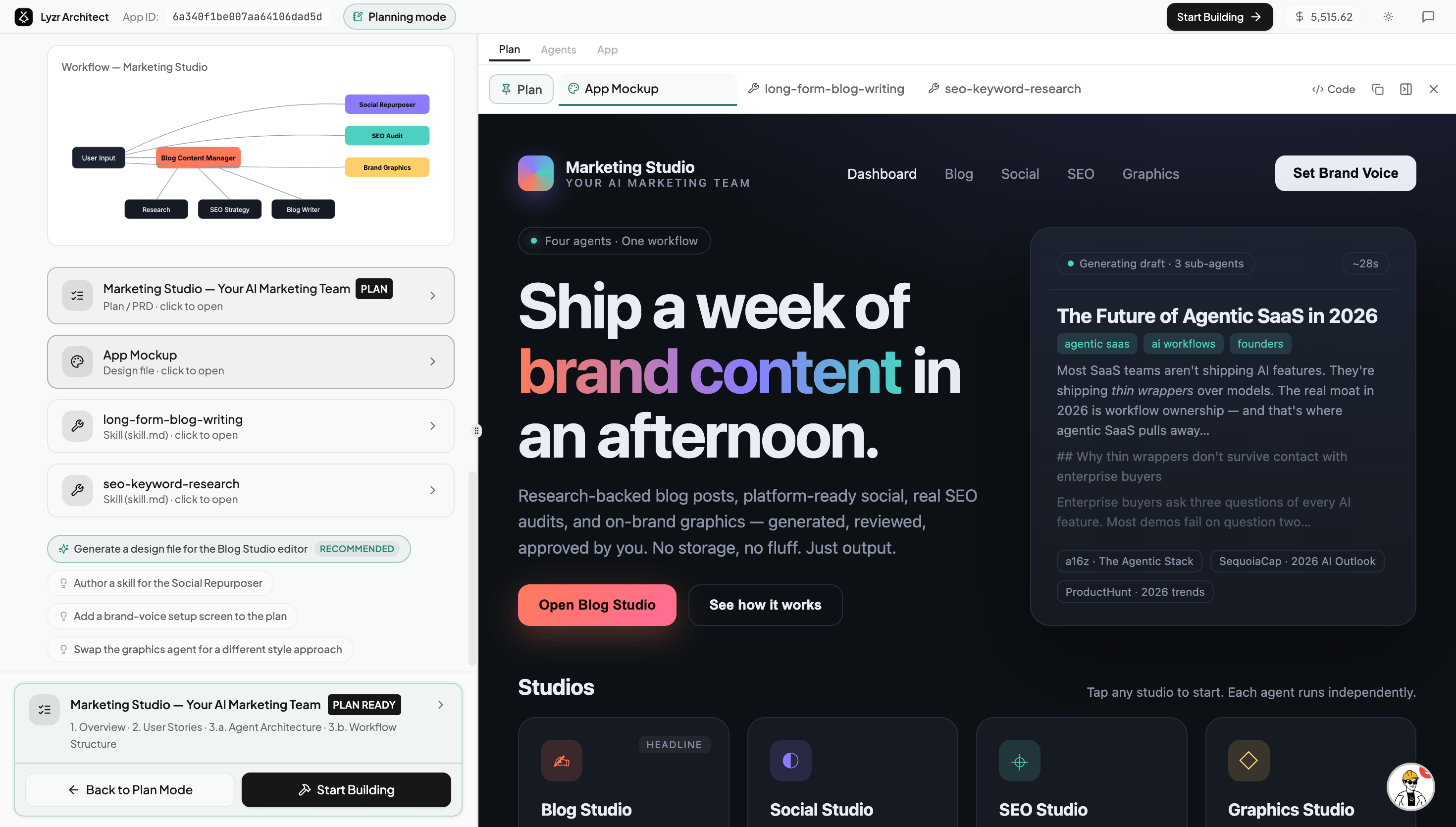
5
Hand off to the build
When the plan is marked Plan Ready, click Start Building. Everything you created in Planning mode — the PRD, the app mockup, the workflow diagram, and the skill files — is handed to the build, so Architect starts with a clear blueprint of exactly what you want.Need to keep refining? Use Back to Plan Mode anytime.
What You Can Generate
Planning mode is more than a chat — it’s where you produce the building blocks your app is made from. Each of these is passed to the build automatically.App Mockup
A high-fidelity design preview of your final app’s UI. Brainstorm and iterate on the look and feel before any code is written.
Plan / PRD
A structured product requirements doc: overview, user stories, agent architecture, detected data sources, and the full agent table.
Workflow Diagram
A visual map of how your agents connect, trigger one another, and hand off work.
Skill files (skill.md)
Reusable instruction files for a specific task — like long-form blog writing or SEO keyword research — that your agents use once the app is built.
PDF / PPT
Export a polished document or slide deck for your use case — handy for sharing the concept or getting stakeholder buy-in.
Empty / starter files
Scaffold the supporting files your app will need so the build has somewhere to start.